
Introduction
Apple Watches have become an indispensable tool for fitness enthusiasts and outdoor adventurers alike, thanks to their durability, long battery life, and built-in GPS. However, even the most reliable tech can experience hiccups now and then.
Rebooting can resolve a wide range of problems, from frozen screens to unresponsive buttons and battery drain. If your Apple Watch is feeling sluggish or unresponsive, a simple reboot can often work wonders. While the process may vary depending on your watchOS version, this quick guide offers a generic guide on how to reboot your Apple Watch and get it back to its optimal performance.

Table of Contents
How to Reboot your Apple Watches with WatchOS 8 and Below
If your Apple Watch is running watchOS 8 or an earlier version, follow these steps:
- Find the Side Button: Locate the elongated button on the right side of your Apple Watch. This is your trusty side button.
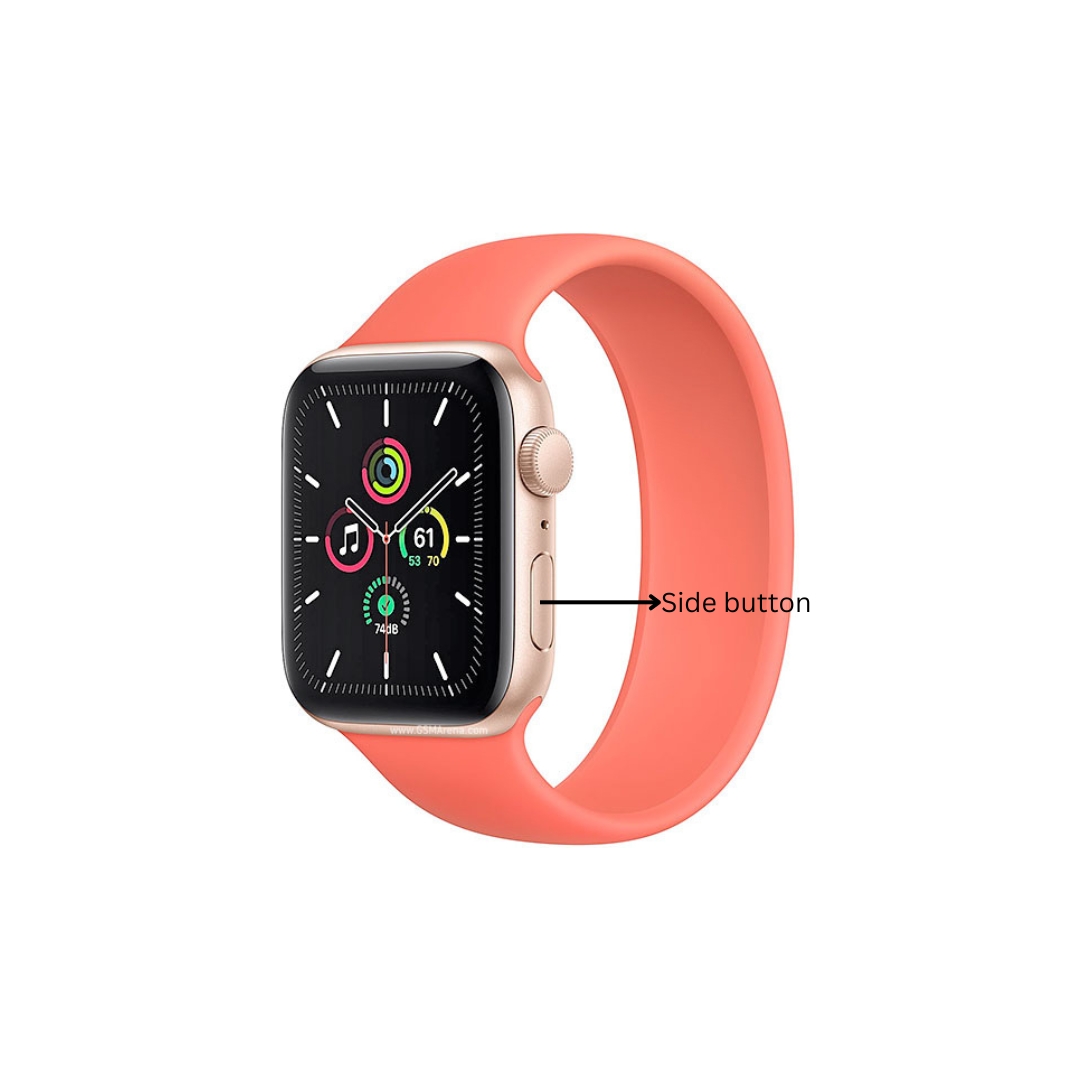
- Hold On Tight: Press and hold the side button for a few seconds. Don’t let go just yet!
- Power Off Slider Appears: Keep holding the side button until you see a slider appear on the screen labeled “power off.”
- Slide to Power Down: Using your finger, swipe the power off slider to the right to turn off your Apple Watch completely.
- Power Up Again: Once your watch is off, press and hold the side button again until you see the familiar Apple logo appear on the screen.
- Let Go and Restart: As soon as the Apple logo appears, release the side button. Your Apple Watch will complete the restart process and boot back up normally.
A New Approach: Rebooting Apple Watches with WatchOS 9 and Beyond
If your Apple Watch is running the latest watchOS 9 (or any future versions), the process is slightly different:
- Hold for SOS: Press and hold the side button on your Apple Watch until the SOS screen appears.
- Locate the Power Icon: In the top right corner of the SOS screen, you’ll see a small power icon button.
- Tap the Power Icon: Give that tiny power icon button a tap.
- Slide to Power Down: Swipe the power off slider to the right to turn off your Apple Watch.
- Power Up Again: Press and hold the side button again until you see the Apple logo appear on the screen.
- Let Go and Restart: Release the side button as soon as the Apple logo appears. Your Apple Watch will complete the restart process and boot back up normally.
Rebooting with a Forgotten Passcode
If you’ve forgotten your Apple Watch passcode, you can still reboot it by following these steps:
- Connect your Apple Watch to a charger.
- Press and hold the Side button until the Apple logo appears.
- Release the Side button and immediately press and hold the Digital Crown.
- Keep holding the Digital Crown until the Erase Apple Watch screen appears.
- Tap “Erase Apple Watch.”
- Follow the on-screen instructions to complete the erasing process.
Data Loss and Interruptions
When you reboot your Apple Watch your data will not be erased. However, it may interrupt active processes, such as workout tracking.
Conclusion
Rebooting your Apple Watch is a simple and effective way to resolve a variety of issues. If you’re experiencing problems with your watch, try to reboot your Apple watch to see if the issue disappears. By following the instructions provided in this guide, you can keep your Apple Watch functioning smoothly and ensure that it remains a reliable companion on your fitness and outdoor adventures. You can also check out how this Installation Guide To Enhance Your Apple Watch Style with a New Band.

My name is Oje and I’m obsessed with finding the latest tech gear to help people track progress and solve problems more efficiently. I spend countless hours researching and testing innovative apps, wearables, and devices for fitness, health, productivity, and more.