
Introduction
Amazfit watches are renowned for their versatility and cutting-edge features, making them a top choice for fitness enthusiasts and outdoor adventurers. With their sleek designs and advanced tracking capabilities, these watches have gained immense popularity. However, one essential aspect that may require adjustment is the timekeeping function.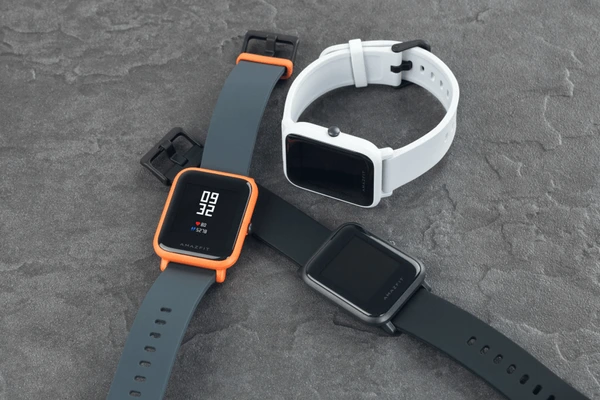
Maintaining the correct time on your watch is crucial for staying on schedule and ensuring efficient planning. Amazfit watches provide users with the flexibility to customize time settings to suit their preferences. In this blog post, we will guide you through how to change the time on your Amazfit watch, explore additional time-related options, and troubleshoot common issues.
Table of Contents
How to Change the Time on Your Amazfit Watch
Unlike some smartwatches that allow direct time adjustments on the device itself, Amazfit watches rely on your paired smartphone to set and synchronize time. Here’s how to change the time on your Amazfit watch:
Method 1: Using the Zepp App (Recommended)
The Zepp app is the official companion app for Amazfit watches. It allows you to manage various settings, view activity data, and change the watch face. Here’s how to adjust time through the Zepp app:
- Grab Your Phone: Ensure your smartphone is paired with your Amazfit watch via Bluetooth.
- Open the Zepp App: Locate and launch the Zepp app on your smartphone.

- Profile Page: Navigate to your profile page within the Zepp app. This might involve tapping on your profile picture or avatar in the app.
- Find Your Device: On your profile page, locate your Amazfit watch from the list of connected devices.
- Device Settings: Tap on your Amazfit watch to access its specific settings menu within the Zepp app.
- Time Settings: Look for a menu option labeled “Time,” “Clock,” or “Watch Face & Time” (depending on the app version).
- Follow Phone Time (Optional): In most cases, you’ll see an option labeled “Follow Phone Time” or “Set Time Zone Automatically.” Enabling this ensures your watch automatically reflects the time set on your smartphone. This is the recommended approach for most users.
- Manual Time Setting (Alternative): If you prefer to set the time manually (not recommended), some Amazfit models might offer a limited manual time setting option within the Zepp app. However, this method is less common and might not be available on all models.
Method 2: Checking Amazfit Watch Manual (For Advanced Users)
While not recommended as the primary method, some Amazfit watch manuals might mention obscure button combinations or hidden menus to manually adjust the time directly on the watch itself. This method is often complex, not user-friendly, and might not be applicable to all Amazfit models. It’s best to consult the official Amazfit website or your watch’s manual for specific instructions if you decide to explore this path.
Maintaining Accurate Timekeeping for Adventure and Fitness
As an adventurer or fitness enthusiast, having the correct time on your wrist is crucial. Whether you’re exploring uncharted territories or pushing your limits in the gym, precise timekeeping ensures you stay on schedule and make the most of your pursuits.
To ensure your Amazfit watch always displays the accurate time, consider the following tips:
- Regularly sync your watch with your smartphone: Syncing your watch with your smartphone ensures it receives the latest time updates from the network.
- Calibrate your watch’s GPS: A properly calibrated GPS helps your watch determine its location and adjust the time accordingly.
- Check time zone settings: If you’re traveling or changing time zones, ensure your watch is set to the correct time zone.
- Keep your watch’s firmware up to date: Software updates often include improvements to timekeeping accuracy. Regularly check for and install updates.
Conclusion
To change the time on your Amazfit watch is a simple process that can be done in just a few steps. By following the instructions in this blog post, you can easily change the time on your Amazfit watch to match your current time zone. You can also check out our step by step guide on how to Reset your locked Apple Watch without Passcode here.

My name is Oje and I’m obsessed with finding the latest tech gear to help people track progress and solve problems more efficiently. I spend countless hours researching and testing innovative apps, wearables, and devices for fitness, health, productivity, and more.