How to Connect Amazfit Watch to your Phone Bluetooth
As an Amazfit watch owner, you’re eager to unlock its full potential and seamlessly integrate it into your daily life. Connecting your Amazfit watch to your phone via Bluetooth is the key to unlocking a world of possibilities.
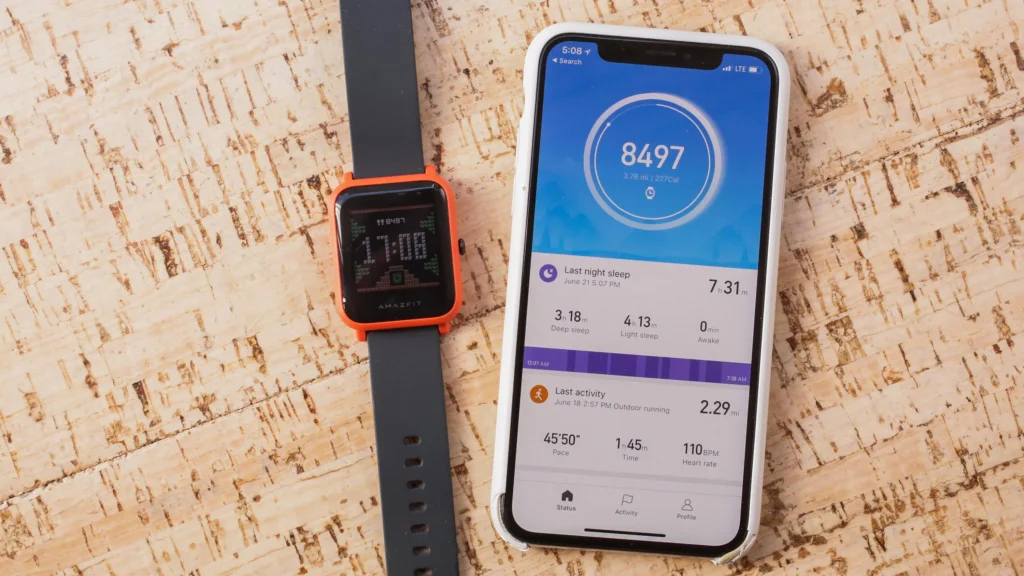
Table of Contents
In this comprehensive guide, we’ll provide you with step-by-step instructions on how to effortlessly establish a Bluetooth connection between your Amazfit watch and your phone. With clear and concise explanations, you’ll be able to:
- Receive notifications on your watch and stay connected with the world
- Track your activity, set fitness goals, and monitor your progress
- Manage your watch settings, customize watch faces, and explore advanced features
Step-by-Step Guide to Connecting Your Amazfit Watch to Your Phone via Bluetooth
1. Enable Bluetooth on Your Phone
* Open the Settings app on your phone.
* Navigate to the “Bluetooth” section.
* Ensure that Bluetooth is turned on.
2. Enable Bluetooth on Your Amazfit Watch
* Swipe down from the top of the watch screen to access the Control Center.
* Tap the Bluetooth icon to turn it on.
3. Pair the Devices
* On your phone, open the Bluetooth settings.
* Wait for your Amazfit watch to appear in the list of available devices.
* Tap on the watch’s name to initiate the pairing process.
4. Enter the Pairing Code
* A pairing code will be displayed on your watch.
* Enter this code into the pairing request prompt on your phone.
* Once the code is entered correctly, the devices will pair successfully.
5. Install the Amazfit App
* Download and install the Amazfit app from the App Store (iOS) or Google Play Store (Android).
6. Sign In to Your Amazfit Account
* Open the Amazfit app and sign in with your Amazfit account.
* If you don’t have an account, create one by following the prompts.
7. Connect to the Watch
* Once you’re signed in, the app will automatically detect your paired Amazfit watch.
* Tap on the watch’s name to connect to it.
8. Allow Permissions
* The app will request permission to access various features on your phone, such as location and notifications.
* Grant these permissions to enable the watch to function fully.
9. Sync Data
* Once the watch is connected, the app will start syncing data from the watch to your phone.
* This process may take a few minutes, depending on the amount of data to be synced.
10. Enjoy Your Connected Experience
* After the sync is complete, you can use the Amazfit app to view and manage data from your watch.
* You can also customize watch settings, receive notifications, and access other features.
Conclusion
With a successful Bluetooth connection, you can now enjoy the full potential of your Amazfit watch. Stay connected, track your progress, and unlock a world of possibilities.
Disclaimer: This guide is for educational purposes only. Always ensure you handle your devices with care and follow the manufacturer’s guidelines. If you’re unsure about the specifics of your watch band, consider seeking help or advice from a professional.
For seamless heart rate monitoring, check out our guide on how to connect the Polar H10 to your Apple Watch. This guide will help you pair the devices effortlessly, ensuring accurate and reliable heart rate data during your workouts.

My name is Oje and I’m obsessed with finding the latest tech gear to help people track progress and solve problems more efficiently. I spend countless hours researching and testing innovative apps, wearables, and devices for fitness, health, productivity, and more.