
A Beginner’s Guide to Setting Time on Your Garmin Watch
As a Garmin watch user, it’s essential to know how to set the time accurately to keep track of your schedule and appointments. Whether you’re a seasoned hiker, fitness enthusiast, or simply want to keep your watch in sync with your smartphone, this comprehensive guide will provide you with the step-by-step instructions you need.

Table of Contents
Step-by-Step Guide to Set Time on Your Garmin Watch
- Turn on the watch: Press and hold the Power button located on the side of the watch.
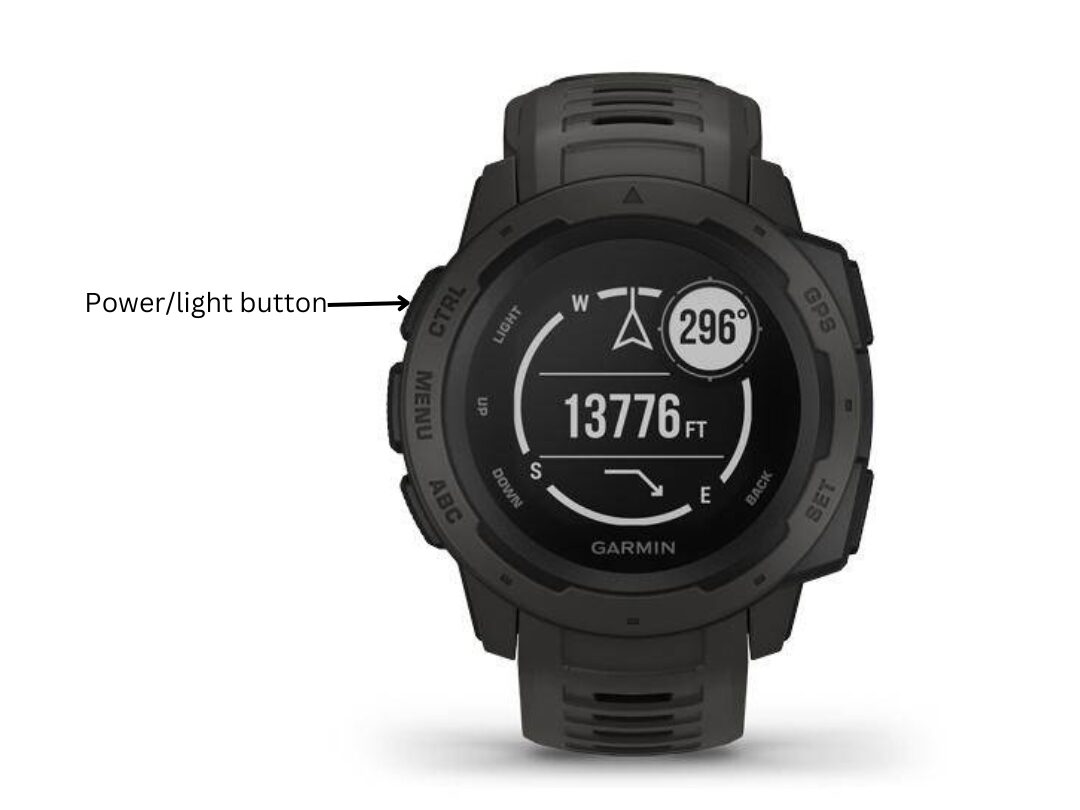
- Enter the Settings menu:
- For older Garmin watches: Press and hold the Menu button until the Settings menu appears.
- For newer Garmin watches: Swipe down from the top of the watch screen to access the Quick Settings menu, then tap the Gear icon.
- Navigate to the Time Settings:
- Scroll through the Settings menu using the up and down buttons.
- Select “System” or “Settings” (depending on your watch model).
- Choose “Time” or “Time & Date.”
- Set the Time Zone:
- Select “Time Zone.”
- Browse through the list of time zones using the up and down buttons.
- Select the correct time zone for your location.
- Set the Time Format:
- Select “Time Format.”
- Choose between 12-hour or 24-hour format.
- Adjust the Time Manually (Optional):
- If necessary, manually adjust the time by selecting “Set Time.”
- Use the up and down buttons to adjust the hours, minutes, and seconds.
- Enable Automatic Time Adjustment (Optional):
- If you want your watch to automatically adjust the time based on your GPS location, enable “Auto Time Adjustment.”
- This feature requires your watch to have a clear view of the sky.
- Save the Changes:
- Press the Back button or swipe from left to right to save the changes.
- Your watch will now display the correct time and time zone.
Unlock the Benefits of Setting Time on Your Garmin Watch
Setting the time on your Garmin watch is not just a simple task – it unlocks a world of benefits that enhance your user experience and maximize the watch’s functionality. Here’s how it can make a positive impact:
- Accurate Timekeeping for Everyday Use: A properly set time ensures precise timekeeping for all your daily activities.
- Enhanced Tracking and Analysis: For fitness enthusiasts, setting the time accurately is crucial for accurate tracking and analysis of your workouts.
- Seamless Integration with Other Devices: Many Garmin watches can connect to your smartphone and other devices wirelessly.
- Precise Sleep Tracking: Some Garmin watches also offer advanced sleep tracking features.
- Enhanced Navigation and Wayfinding: For those who use their Garmin watches for navigation and wayfinding, setting the time correctly is crucial for accurate location tracking.

Conclusion
Setting the time on your Garmin watch is not just a minor task – it’s a gateway to unlocking a range of benefits that enhance your user experience. From accurate timekeeping to enhanced tracking and analysis, seamless integration, precise sleep tracking, and improved navigation, a properly set time ensures that you get the most out of your Garmin watch. Take a few minutes to set the time correctly and enjoy the full potential of this versatile device.
Have a Suunto smartwatch and wondering how to connect your Suunto watch with an andriod phone? Here’s a detailed guide for you.

My name is Oje and I’m obsessed with finding the latest tech gear to help people track progress and solve problems more efficiently. I spend countless hours researching and testing innovative apps, wearables, and devices for fitness, health, productivity, and more.